
Build a listicle or an advertorial with AI Pages
Pick a product, choose Listicle or Advertorial, and get a page of its own that sells it. Edit it, then publish it to your store.
AI Pages can now build a listicle or an advertorial that sells one of your products. Each one goes on your store as a Shopify page of its own, so your product keeps its product page and photos. We write it, design it and shoot the photos, and you edit it before anything goes live.
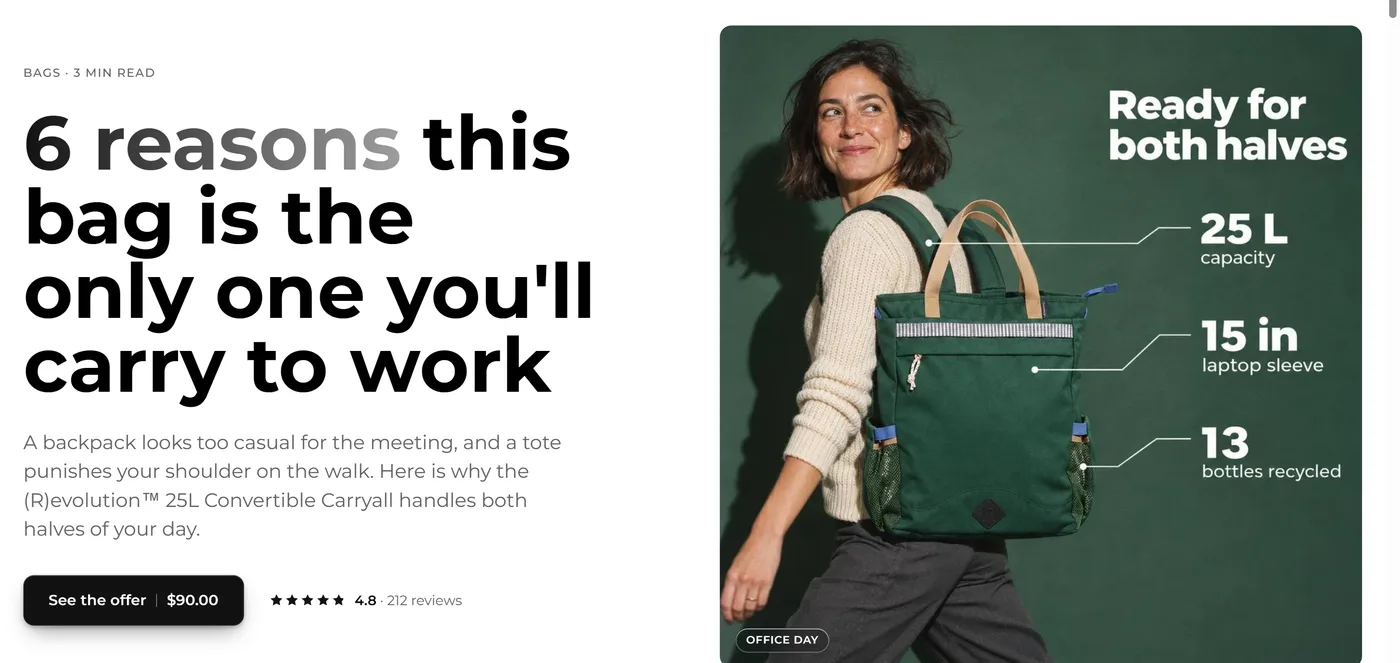
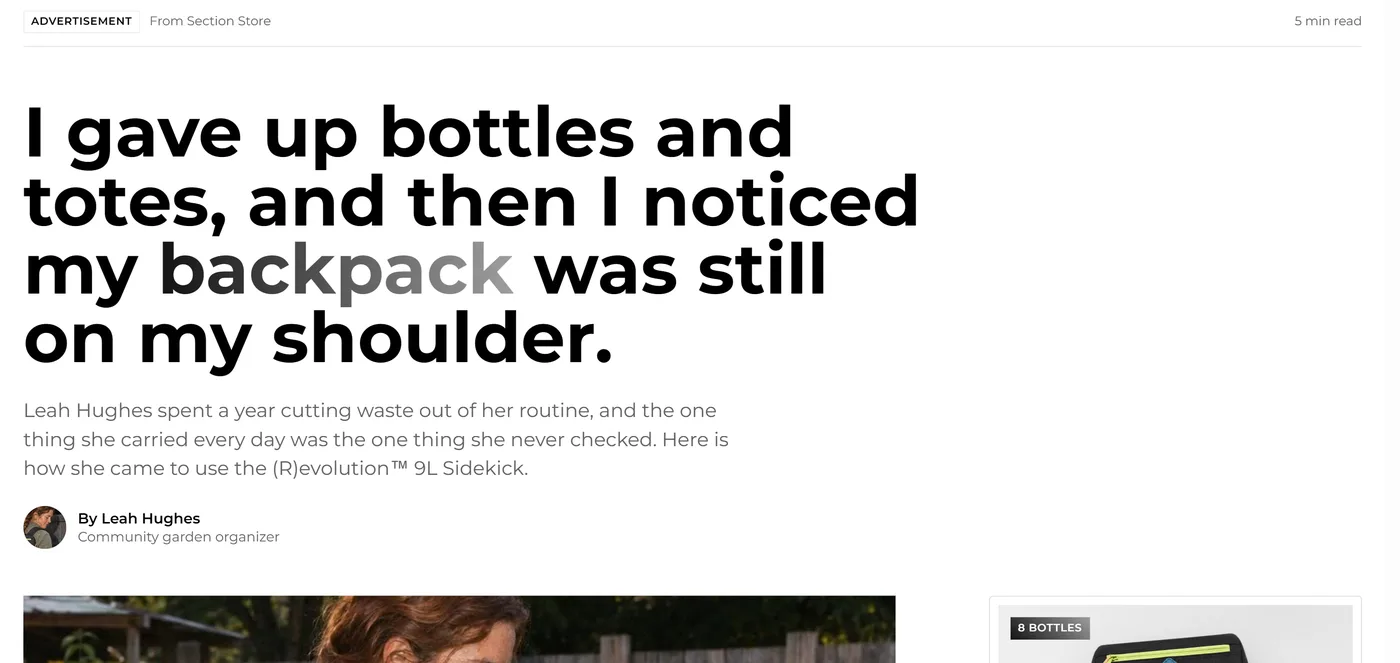
Before you start
- You need a product that is on your Online Store. If it isn't, you'll see Your product isn't on your Online Store. Add it there, then publish.
- The first time, Shopify asks you to give access to your products, files and pages.
- Publishing a page needs Section Store Plus. If you don't have it yet, publishing starts your 14-day free trial.
Build your page
In Section Store, open AI Pages.
Click Choose a product and pick the product.
Next to the product, pick Listicle or Advertorial.
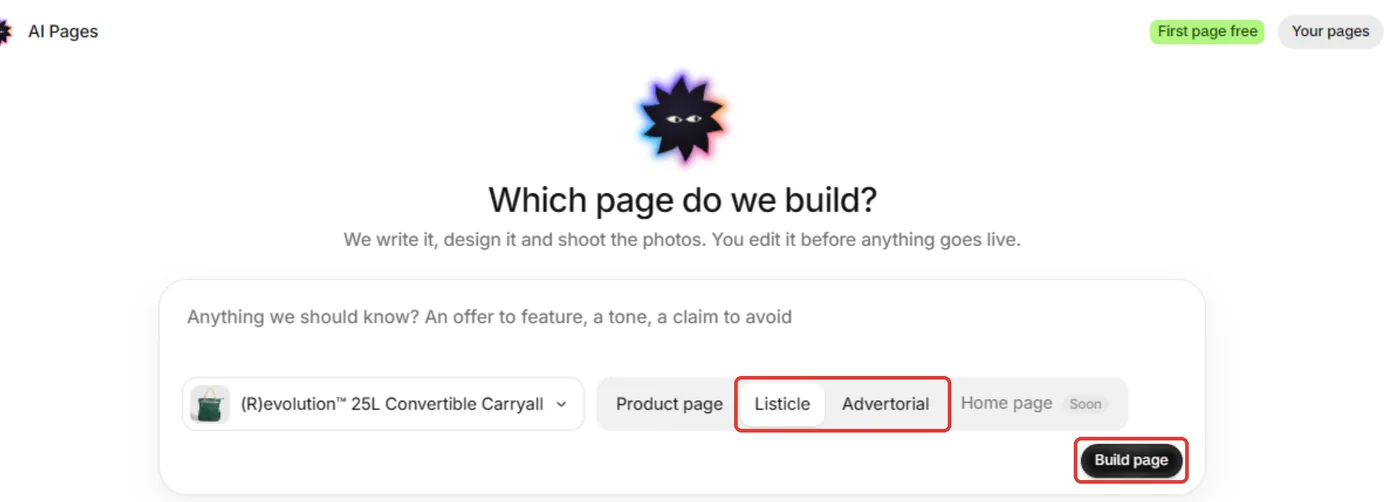
Optional: add notes for this page, like an offer to feature, a tone or a claim to avoid.
Click Build page.
Pick who the page is for and how it should look, then click Write my page.
Edit and publish
Edit the page in the editor. Your changes save on their own, and Undo takes a change back.
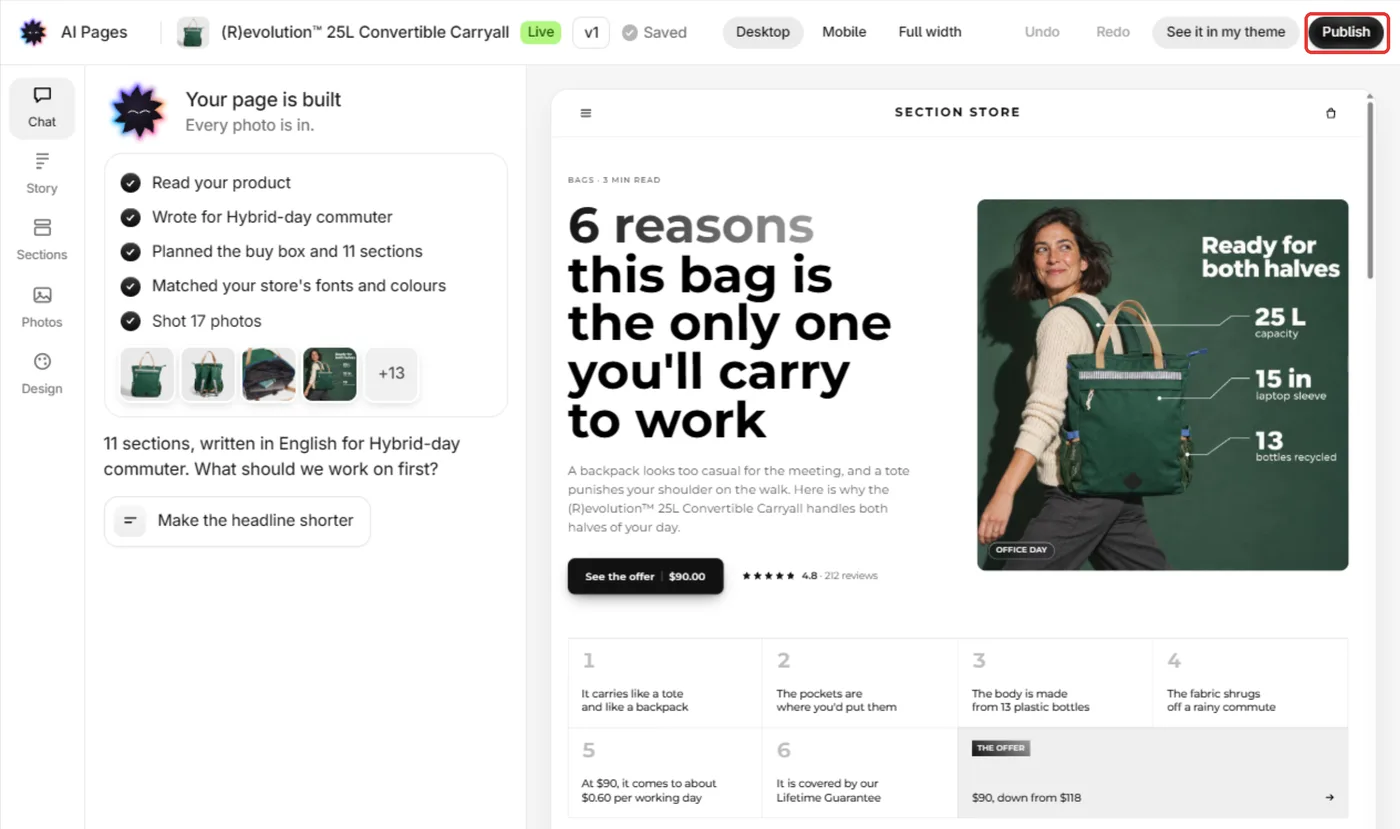
Click Publish.
In Put your page live, pick your theme. We make the page's address from its headline when you publish.
Publish. You'll see Your page is live.
Tips
- Publish to your live theme. On a theme that isn't live, we keep your page hidden until you publish it to your live theme.
- The page's title in Shopify is its full headline, so pick a headline you're happy to see in the browser tab and in search.
- If Section Store Plus ends, we hide your listicles and advertorials. Subscribe again and they go live by themselves.
- Find every page you built under Your pages at the top of AI Pages.
Related
Also searched as: listicle, advertorial, ai listicle, ai advertorial, listicle page, advertorial page, advertorial landing page, listicle landing page, top reasons page, story page for a product, native ad page, presell page, pre-sell page, landing page for ads, facebook ad landing page, ai landing page, sales page, product story page, build listicle with ai, build advertorial with ai, ai pages listicle, ai pages advertorial, new page type, shopify page from ai pages, publish listicle, listicle not showing, advertorial hidden, page hidden after plus ended, page address, page url from headline, product not on online store, advertorail, listicel
Did this answer your question?