
Connect ChatGPT to Section Store (update)
Add Section Store to ChatGPT in one click from ChatGPT's plugin directory, then approve the connection in your Shopify admin.
Section Store is now in ChatGPT's plugin directory. Click ChatGPT in Section Store, install the plugin, then approve the connection in your Shopify admin. You no longer need to paste a server URL.
Before you start
- Section Store must be installed on your store.
- ChatGPT builds bundles and carts on any plan. Switching them on needs Section Store Plus.
Add Section Store to ChatGPT
In Shopify admin, open Apps → Section Store.
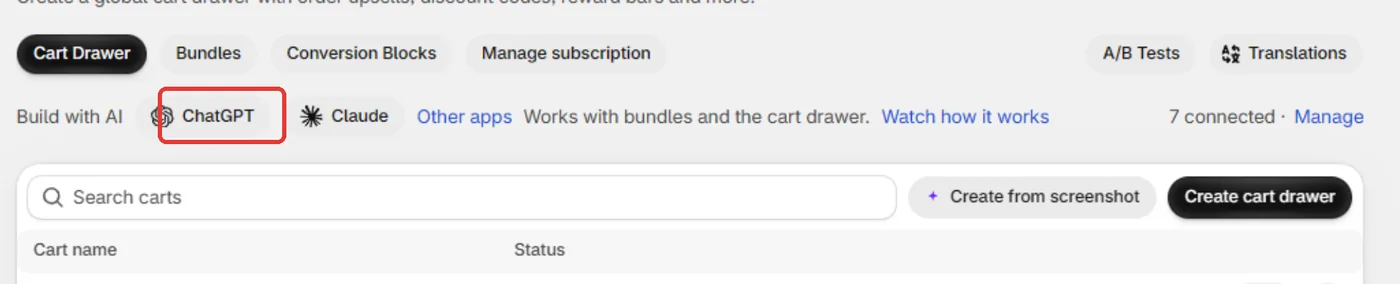
Find the Build with AI line on Home, Bundles or Cart Drawer.
Click ChatGPT. Section Store opens in ChatGPT's plugin directory, in a new tab.
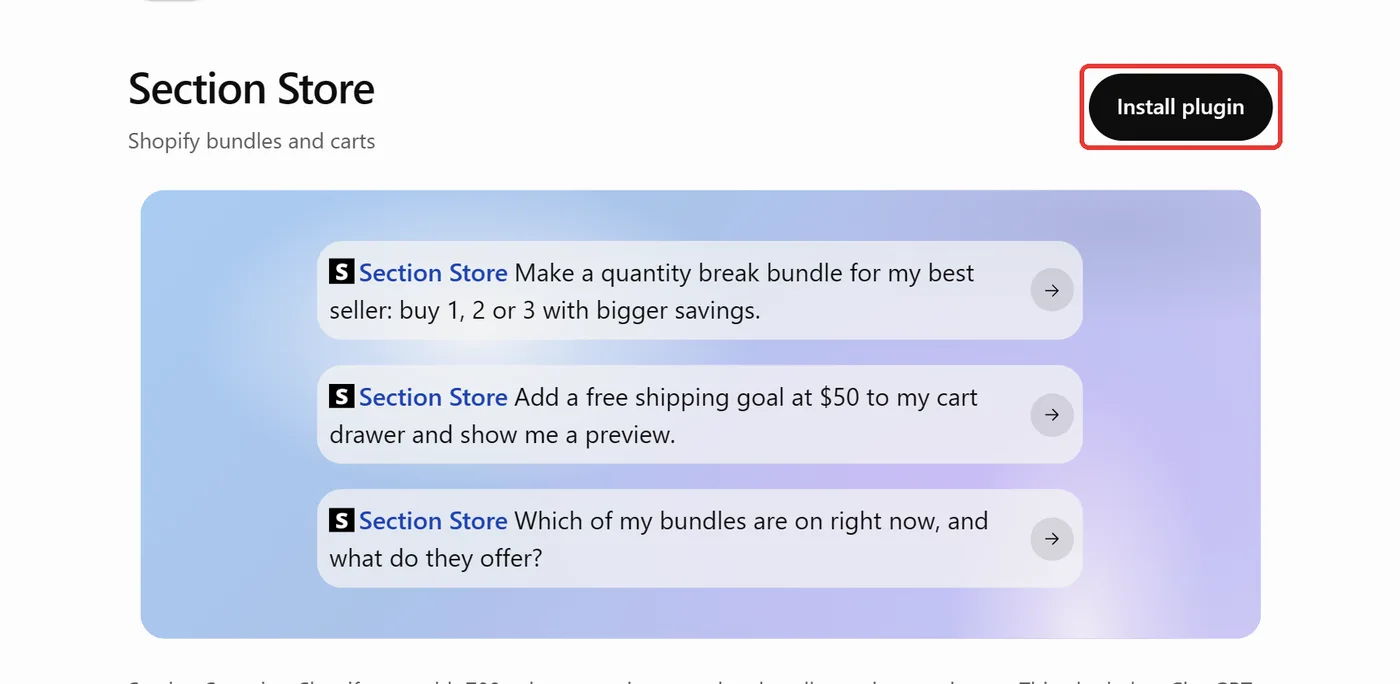
Click Install Plugin.
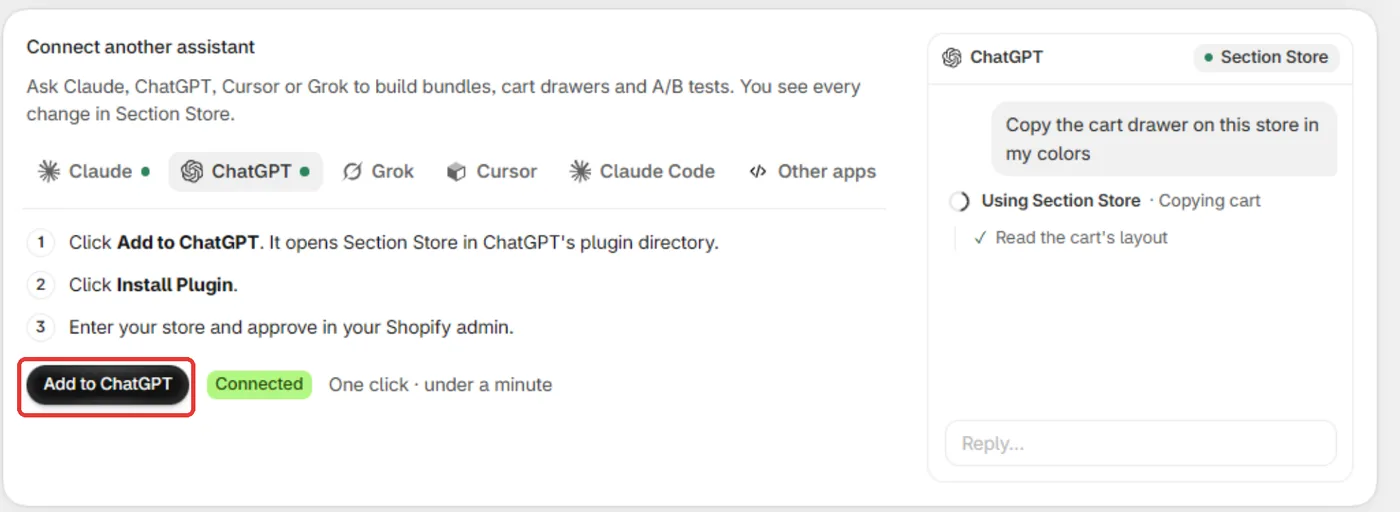
You can also start from the AI assistants page: click Other apps on the Build with AI line, pick the ChatGPT tab and click Add to ChatGPT.
Approve the connection
- ChatGPT opens a page that reads Connect ChatGPT to Section Store. Enter Your store. Your myshopify address, admin URL or store domain all work.
- Click Continue. Shopify admin opens.
- Read the list of what ChatGPT can do, then click Connect ChatGPT.
- ChatGPT opens again, connected.
Stay in the same browser for these steps, and finish within 15 minutes.
Tips
- Check it works: ask ChatGPT "Use Section Store to list my bundles." In Section Store, the Build with AI line shows 1 connected · Manage.
- The ChatGPT button no longer opens the AI assistants page. To reach that page, click Other apps, or Manage once an assistant is connected.
- "This sign-in started in another browser": start again from ChatGPT, and approve in the browser where the sign-in opened.
- Anything else: My AI assistant won't connect to Section Store
Also searched as: connect chatgpt, chatgpt, chat gpt, chatgpt plugin, chatgpt plugins, chatgpt plugin directory, install plugin, add to chatgpt, openai connector, chatgpt app, chatgpt mcp, chatgpt connector, chatgpt section store, other apps, chatgtp
Did this answer your question?