
Unsubscribe or cancel Section Store Plus
Cancel Plus on the Manage Subscription page, see the day it ends, and find out what stops working.
Cancel Plus inside the app. Open Manage Subscription, click Cancel subscription, pick a reason, click Continue and click Cancel Plus. Nothing cancels until you click Cancel Plus. A paid plan keeps working until the paid period ends. A free trial ends at once. Sections you bought stay yours.
Cancel Plus
- In Shopify admin, open Apps → Section Store → Conversion Blocks.
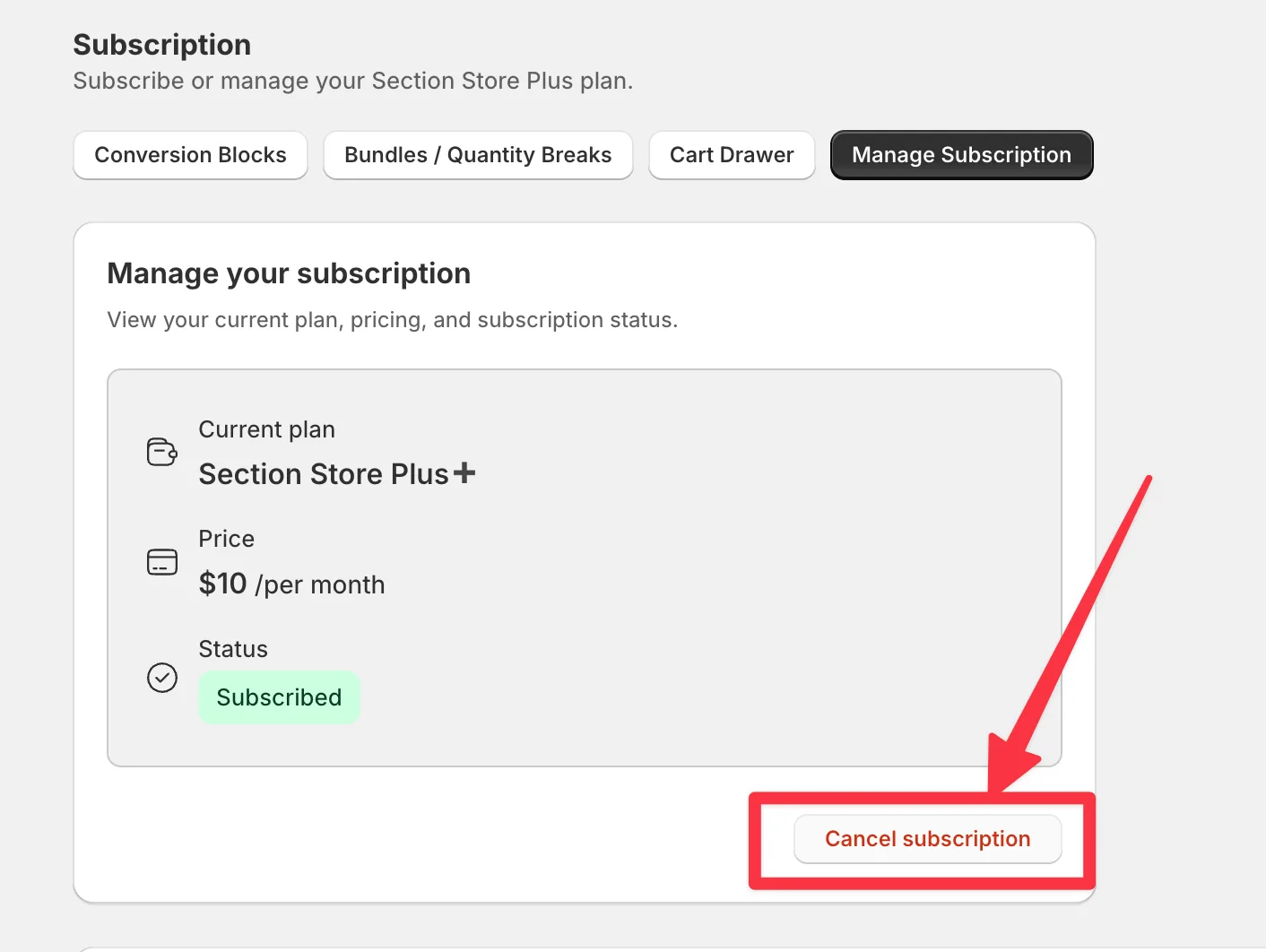
- Click Manage Subscription. You see your plan, price and status.
- Click Cancel subscription.
- Pick a reason. You need one to go on.
- Click Continue. To stop, click Keep Plus.
- Click Cancel Plus. To stop, click Go back.
When it works, you see "Your subscription has been cancelled successfully." On a paid plan, the status now reads Cancelled, with Service available until and a date. After a trial, the page offers Plus again.
When Plus ends
- Free trial: Plus ends the moment you cancel. You pay nothing.
- Paid plan: Plus ends on the date shown. Shoppers keep your blocks, bundles and cart drawer until then. Cancelling doesn't refund the rest of the period.
The last step says you lose access immediately and blocks are removed from your theme. On a paid plan you keep Plus until the date shown. We never remove blocks from your theme. They stop showing when Plus ends.
The first step may warn you, for example "You have 3 blocks live on your store. They stop working on 12 Dec."
What changes right after you cancel
Your storefront stays the same until Plus ends. The app changes at once:
- You can't turn on a bundle or a cart.
- If you save a live bundle, it becomes a draft and we delete its Shopify discount. Shoppers stop seeing that bundle at once.
- If you save a live cart, it goes off.
- You can't start an AI Pages build or buy credits.
- You can't open your A/B tests.
- The Manage Subscription button reads Subscribe. It still opens this page.
Changed your mind? Click Subscribe again on this page. This starts a new subscription. Billing starts when you approve, with no credit for the days you already paid for. If you can wait, subscribing after the paid period ends wastes no paid days.
Uninstalling also cancels Plus
You don't need to cancel first. See Uninstall Section Store: what stays behind.
If it doesn't work
- "You don't have an active subscription to cancel." Plus has already ended on this store. Check your bills if you still see a charge.
- "Failed to cancel subscription." Reload the page and try again. If it fails twice, open the chat bubble in the app or email [email protected].
- You only see Subscribe. You already cancelled, or Plus isn't active on this store. If you run two stores, open the app in the one that pays.
Related
- What happens when Plus ends?
- Cancel the Plus free trial before you're charged
- Why was I charged after I cancelled Plus?
- Subscribe to Plus again after cancelling
- Invoices, billing and canceling
Also searched as: cancel, cancel my subscription, cancel plus, cancel subscription, do i lose my sections, downgrade, end of billing cycle, end subscription, how do i cancel, how to unsubscribe, keep my sections, one time sections unaffected, stop being charged, stop billing, stop plus blocks, stop subscription, turn off subscription, unsubscribe, where do i cancel, will my sections stop working, manage subscription, service available until, failed to cancel subscription, cancelar suscripcion, cancelar suscripción, como puedo cancelar la suscripcion, cómo cancelar suscripción, cancelar, darse de baja, abo kündigen, kündigen, abonnement kündigen, subscription beenden, wie kann ich kündigen, abbestellen, resilier, résilier, resiliation, annuler abonnement, arreter mon abonnement, disdire abbonamento, voglio disdire l'abbonamento, annullare, opzeggen, abonnement opzeggen, stopzetten, aboneliği iptal, iptal, assinatura cancelar, cancelar assinatura
Did this answer your question?