
Start a cart drawer from a ready-made template
Pick one of 31 live cart designs, match it to your store, check its rewards and save it.
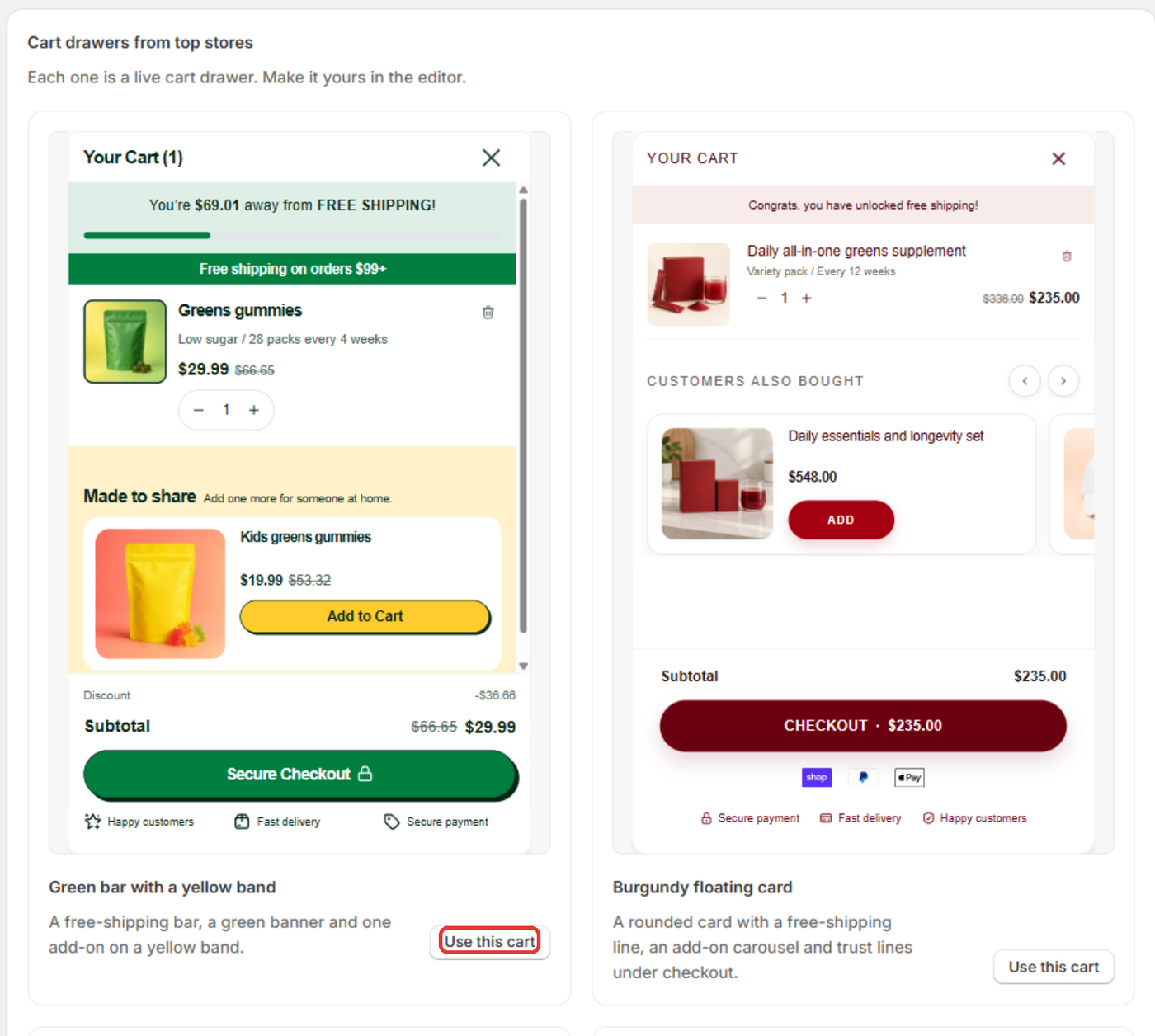
Open Cart Drawer and scroll to Cart drawers from top stores. Click Use this cart on a design, pick a look, then click Use cart. The editor opens with the cart set up for your store. It stays off and unsaved until you save it and turn it on.
There are 31 templates. Each card is a live cart drawer with a sample cart.
Use a template
- In Shopify admin, open Apps → Section Store → Cart Drawer.
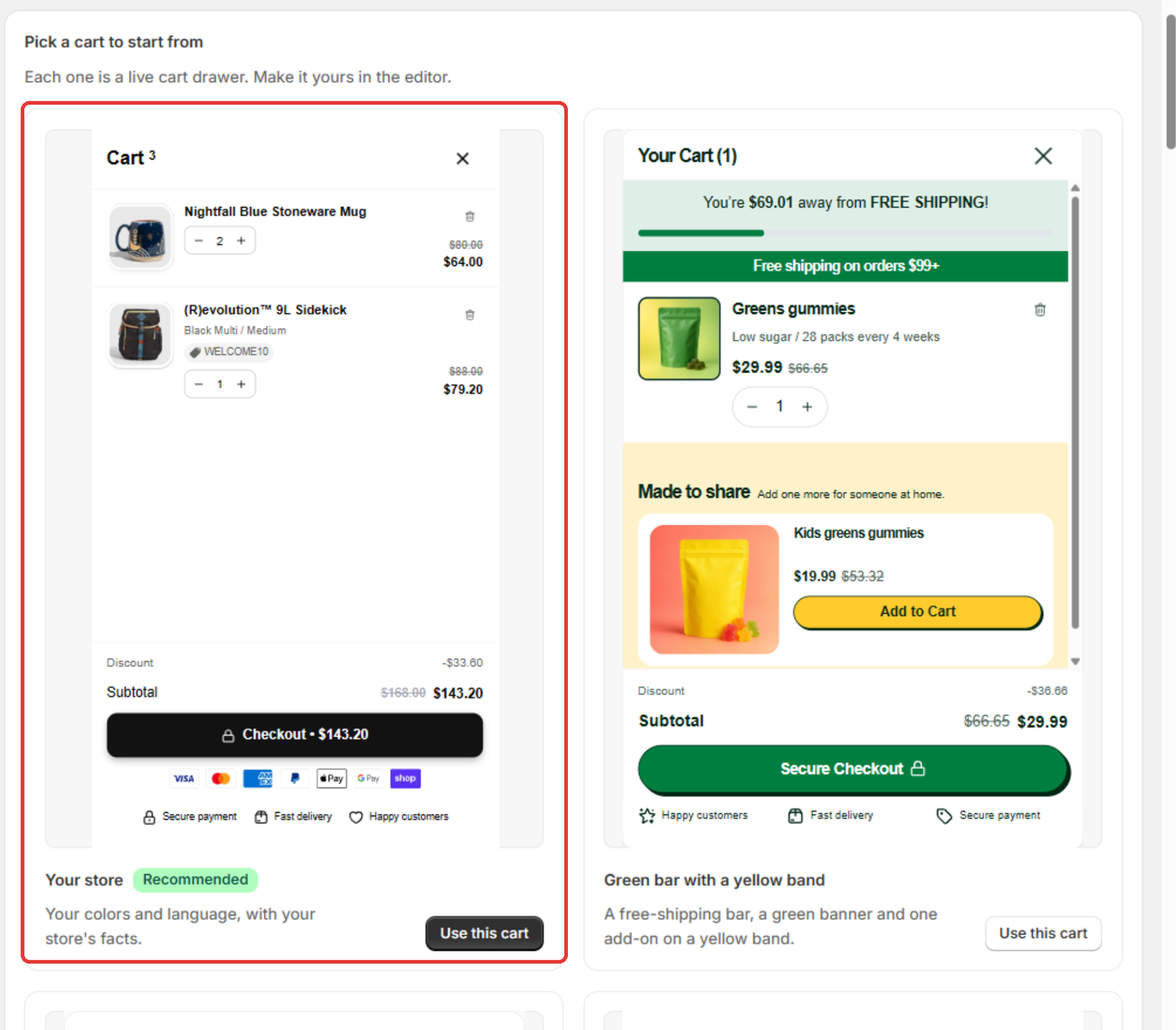
- Scroll to Cart drawers from top stores. You also see the templates after you click Create cart drawer, under Pick a cart to start from.
- Click Use this cart on the one you like.
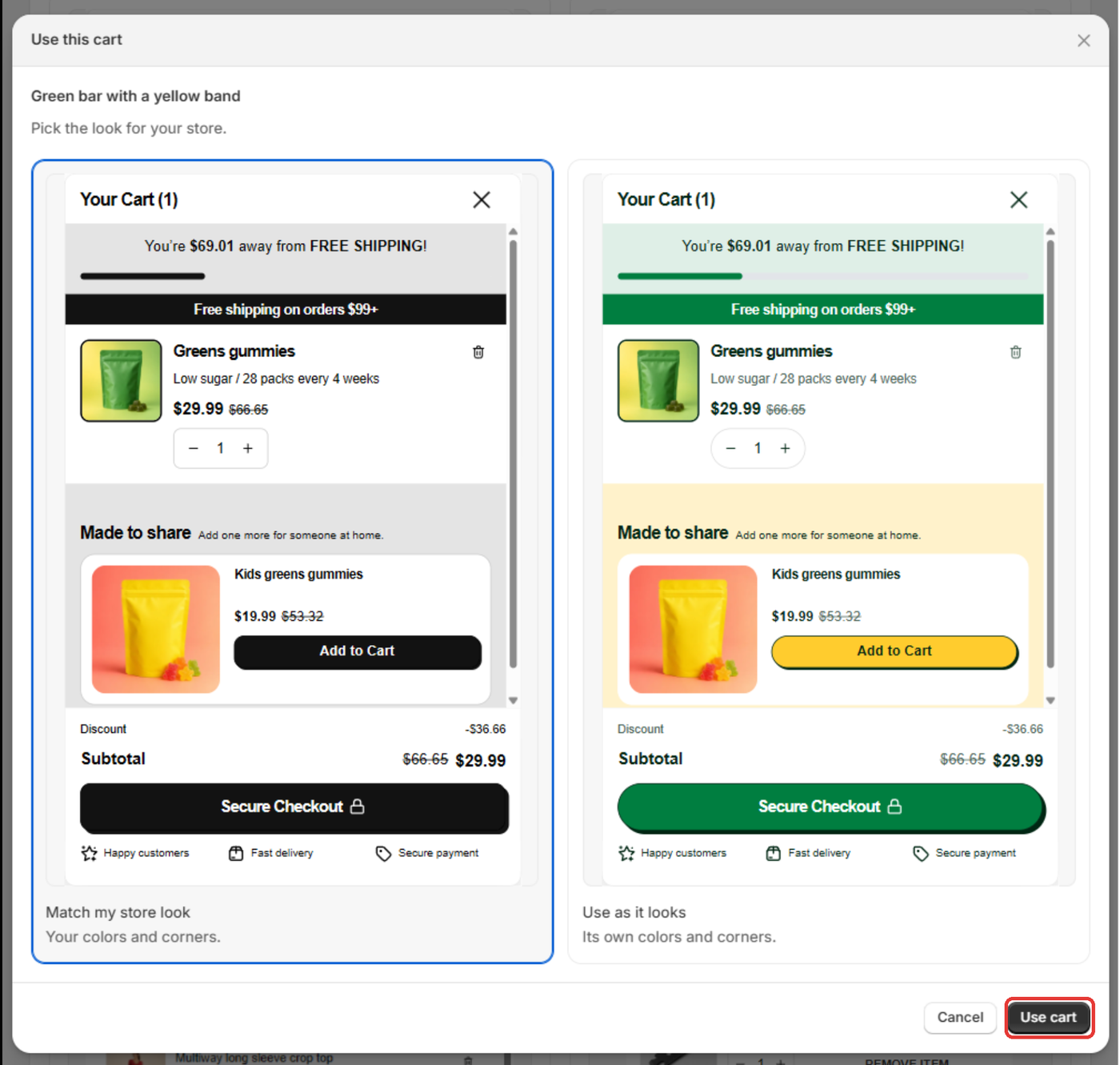
- In Pick the look for your store., choose Match my store look or Use as it looks.
- Click Use cart.
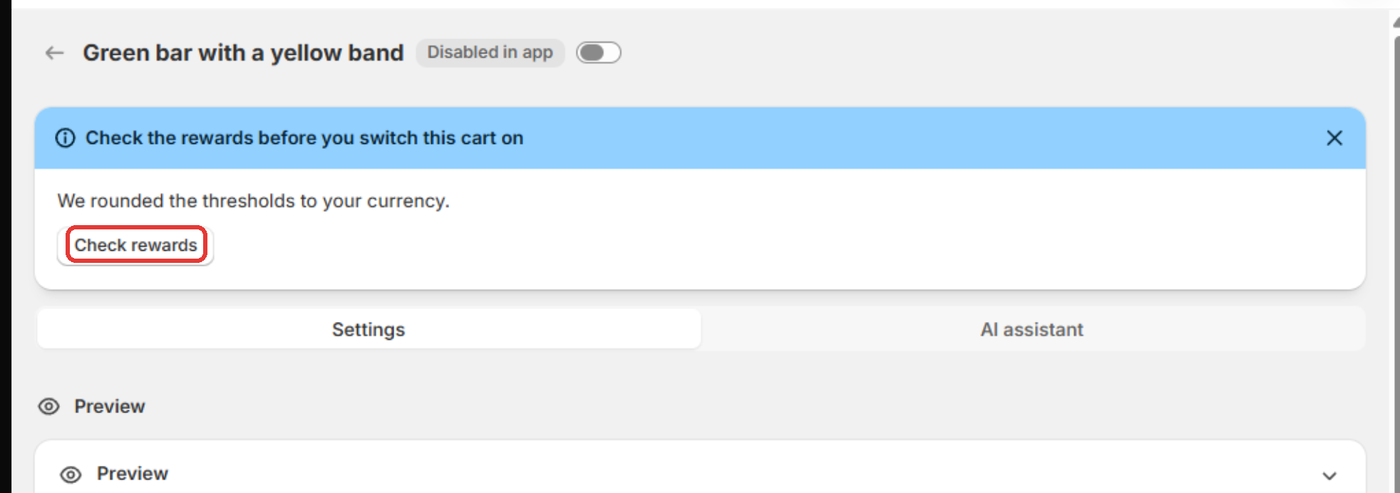
- Wait while we set it up. The editor opens with a banner: Check the rewards before you switch this cart on.
- Click Check rewards. The Reward bar card opens.
- If the template has Free gift tiers, pick a gift product for each one.
- Click Save.
- Turn on the cart's switch when you are ready.
What we change for your store
- Thresholds: we convert them to your currency and round them like a price tag. Check that they suit you.
- Trust badges: they state your store's own facts.
- Words: on Plus, we rewrite the cart's text to fit your store and its language. Without Plus, you keep the template's words.
- Look: Match my store look uses your colors and corners. Use as it looks keeps the template's. Fonts follow your theme either way.
Good to know
- A free gift tier with no product never shows to shoppers.
- A template's Order addon blocks start off with no product. Pick a product, then turn on the card's switch.
- A template cart always starts off, even on a store with no other cart.
- Without Plus, you can set up and save a template, but you need Plus to turn it on.
The first card on the New cart drawer page is Your store. It is your own colors and language with your store's facts. It is the simple choice.
Can I copy a cart from another store?
No. A cart stays in the store where you made it. You can't export it or move it to a second store. Duplicate cart makes a copy in the same store only. For the same look on another store:
- Start from a template in that store: click Use this cart, then Check rewards, and pick a product for each free gift.
- Or click Create from screenshot on the Cart Drawer page and upload a picture of the cart. Read Create a cart drawer from a screenshot
If it doesn't work
- "We couldn't set up this cart. Try again." or "Setup took too long. Try again.": click Use this cart again.
- "We couldn't read your store's colors. This cart keeps its own.": the template keeps its own look. Change it under General → Styles.
- "We couldn't add the banner's picture. Upload one in the Banner block.": open the Banner card and add a picture.
Related
Also searched as: cart template, cart drawer templates, template gallery, premade cart, ready made cart design, cart design examples, cart inspiration, starter cart, cart drawers from top stores, match my store look, use as it looks, check rewards banner, setup took too long, templete cart, copy cart from another store, copy a cart to another store, move cart to another store, transfer cart to another store, use my cart on another store, copy template cart
Did this answer your question?