
Add the Countdown timer block to your product page
Add a per-shopper countdown to your buy box. Set its length, what happens at zero, and its text and colors.
The Countdown timer block shows a timer with a line of text and a progress bar. Each shopper gets their own timer, up to 24:59:59. It can't end on a calendar date, and it starts again on the next page load after it ends. So it isn't a real deadline. For a real deadline, use the Countdown bar on a bundle.
This block is not one of the countdown sections in our catalog, like Countdown timer #1 or Countdown timer bar. It has no date, time zone or UTC settings.
Before you start
You need Section Store Plus or its free trial.
Add the block
- In Shopify admin, open Apps → Section Store → Conversion Blocks.
- On the Countdown timer card, click Edit In Theme.
- Pick your theme. Your live theme has a green dot.
- The theme editor opens on your product template with the block added.
- Drag the block where you want it.
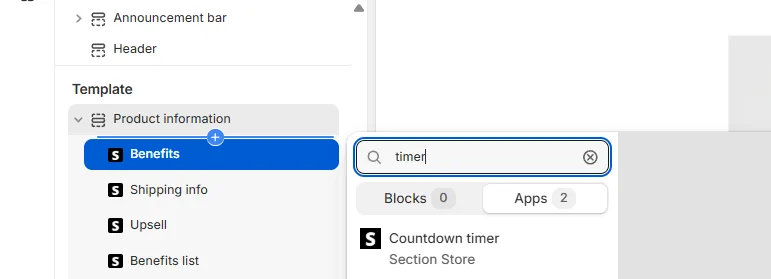
Set the timer
- Under Timer, set Hours (0 to 24), Minutes (0 to 59) and Seconds (0 to 59).
- Set Progress start at (%). The bar starts there and fills up to 100% at zero.
- Pick Action on complete:
- Do nothing: the timer stays at 00:00.
- Reset countdown: the timer starts over at once.
- Hide countdown: the block leaves the page until the next page load. This is the default.
- Under Text, change "Hurry up! Sale ends in:". Clear it to show the timer alone.
- Click Save.
How it counts
- Each shopper starts at the full length when they first see the block.
- Their browser saves the end time, so a reload or a return visit doesn't restart it. The timer keeps running while they're away.
- Every product on the template shares the same timer in that browser.
- After it ends, the next page load starts a fresh timer. This happens with every Action on complete choice.
- Another device, another browser, a private window or cleared browser data starts a new timer.
- Under one hour, the hours disappear and you see minutes and seconds.
- The timer shows numbers only. There are no words like "hours" to translate.
The note in the theme editor says the timer resets each browser session. In fact the browser keeps the end time across visits until the timer ends.
Other settings
- Number: Font size and Color.
- Text: Text, Font size and Color.
- Progress color: Default color and Active color.
- Appearance: Border, Thickness, Color, Roundness and Background.
- Padding: Top, Bottom, Left and Right.
- Custom CSS.
If it doesn't work
- The block is gone: it ended with Hide countdown, so reload the page. If it stays gone, Hours, Minutes and Seconds are all 0.
- You changed the length but see the old time: your browser still holds the old end time. Open the page in a private window.
- It restarts in the theme editor: the editor restarts it on each load. Test on your live page.
Related
- Can the Countdown timer block end on a set date?
- Countdown timer block restarts or shows the wrong time
- What's the difference between a Conversion Block and a section?
Also searched as: countdown, countdown timer, countdown timer block, timer block, urgency timer, sale timer, evergreen timer, sale ends in, flash sale, timer color, timer duration, progress bar, action on complete, timer not showing, hurry up
Did this answer your question?