
Translate bundles and cart drawer text
Translate your bundle and cart drawer text on the Translations page, with Auto-translate or by hand, for each store language.
Translate bundle and cart text on the Translations page in Section Store. This needs Plus. Conversion Blocks and purchased sections are different: Shopify's Translate & Adapt app translates those, because their text is saved in your theme.
Before you start
- You need Plus. A free trial counts.
- Your language must be published in Shopify. The language list shows published languages only.
- Shopify may ask for read-only access to your languages. Click Review Access Scopes and approve it.
Translate bundle text
- In Shopify admin, open Apps → Section Store → Bundles.
- Click Translations.
- Check that the first dropdown reads Bundles.
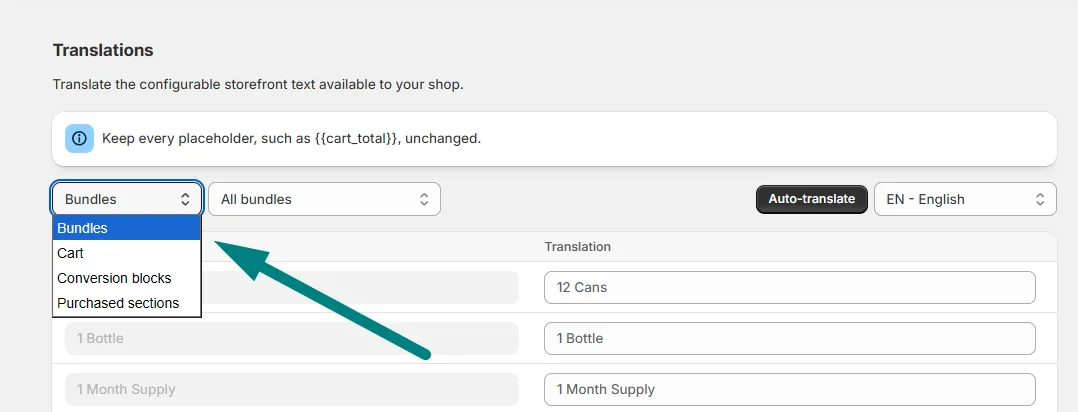
- In the second dropdown, pick one bundle or leave All bundles.
- Pick your language in the dropdown on the right.
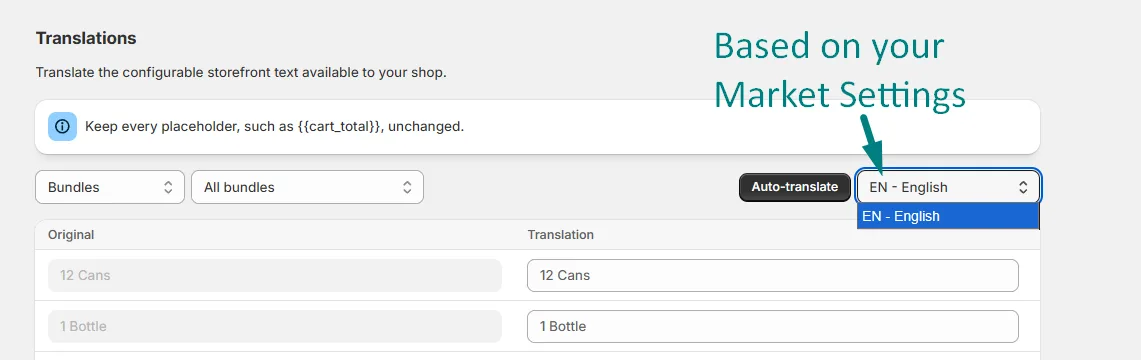
- Type each translation next to the Original, or click Auto-translate and check the result.
- Click Save in the bar at the top.
You see "Translations saved. Storefront updates are publishing in the background."
Translate cart drawer text
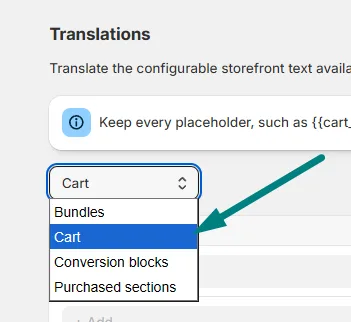
The steps are the same. Open Cart Drawer, click Translations, and check that the first dropdown reads Cart. Pick one cart or All carts in the second dropdown. This covers the text in the drawer, including the reward bar and free shipping messages.
Leave placeholders alone
Anything inside double curly braces is a placeholder, not words. {{cart_total}} gets swapped for a real value when a customer sees it. If you translate it, the line breaks.
This is fine:
Add {{amount_remaining}} to unlock {{next_tier_title}}. becomes Ajoutez {{amount_remaining}} pour débloquer {{next_tier_title}}.
This is not:
Ajoutez {{montant_restant}} pour débloquer {{next_tier_title}}.
What you don't need to translate
Built-in words such as "Checkout" follow the shopper's language by themselves. Default text in a new cart fills into your published languages too. You translate what you typed or changed.
If it doesn't work
- The translation doesn't show on your store. See My translation isn't showing on my store.
- "No published Shopify languages are available." Add and publish a language in Shopify first.
- You can't pick Bundles or Cart. Plus isn't active on this store.
- "Auto-translate is receiving too many requests." Try again in a minute.
- "You've reached today's Auto-translate limit." It resets tomorrow. You can still type translations by hand.
Related
- What can I translate on the Translations page?
- My translation isn't showing on my store
- Cart drawer support guide
- Bundles support guide
Also searched as: translate, translation, translations, translating, language, languages, localize, localise, localization, multilingual, two languages, second language, other language, bundle text, translate bundle, bundle language, quantity breaks text, cart drawer text, translate cart drawer, cart drawer language, reward bar text, free shipping bar text, auto-translate, auto translate, french, german, spanish, dutch, italian, portuguese, not in my language, placeholder, cart_total, curly braces, plus translations, spanich, spanisch, leguege, langauge, languge, idioma, francais, français, langue, sprache, taal, lingua, dil, traducir, traduire, übersetzen, vertalen, tradurre
Did this answer your question?