
Add the Pulse badge block (in stock and low stock message)
Show a pulsing dot with live stock text for the selected variant, or your own message.
The Pulse badge block shows a pulsing dot with text. By default it shows live stock for the selected variant, like "Going fast: 7 left". You can turn that off and show your own message.
Before you start
You need Section Store Plus or its free trial.
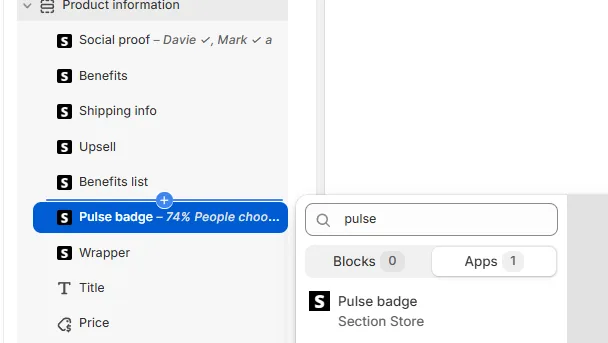
Add the block
- In Shopify admin, open Apps → Section Store → Conversion Blocks.
- On the Pulse badge card, click Edit In Theme.
- Pick your theme. Your live theme has a green dot.
- The theme editor opens on your product template with the block added.
- Drag the block where you want it.
- Click Save.
Live stock text
Auto color & text by stock level is on by default. The block reads Shopify inventory for the selected variant:
| Stock | Text | Color |
|---|---|---|
| Inventory not tracked | In stock & ready to ship | Green |
| 0 or less | Out of stock | Red |
| 1 to 3 | Only 3 left — order now! | Red |
| 4 to 10 | Going fast: 7 left | Orange |
| More than 10 | In stock & ready to ship | Green |
The text and colors are fixed. So are the thresholds of 3 and 10. The text follows the shopper's storefront language.
The badge updates when the shopper picks another variant.
Your own message
- Turn off Auto color & text by stock level.
- Replace the sample Text, "74% People choose subscription".
- Pick the icon Color and the text Color.
- Click Save.
Your message is the same for every variant. It ignores stock.
Other settings
- Layout: Alignment.
- Icon: Size.
- Text: Font size and, with auto text on, Text weight.
- Appearance: Border, Thickness, Color, Roundness and Background.
- Padding: Top, Bottom, Left and Right.
- Custom CSS.
If it doesn't work
- A variant at 0 says Out of stock but still sells: the block reads quantity only. It ignores Shopify's option to keep selling when out of stock.
- It always says In stock & ready to ship: Shopify isn't tracking that variant's inventory, or it has more than 10.
- It doesn't change with the variant: your theme or an app uses a custom variant picker. Open the chat bubble in the Section Store app or email [email protected].
Related
- Pulse badge block shows the wrong stock message
- Add the Badges block (pill badges and icons)
- Translate Conversion Block text
Also searched as: pulse badge, pulsing dot, green dot, in stock badge, stock badge, low stock, only x left, stock counter, inventory badge, stock indicator, stock message, availability badge, ready to ship, scarcity, 74% people choose subscription
Did this answer your question?