
Add the Upsell block to your product page
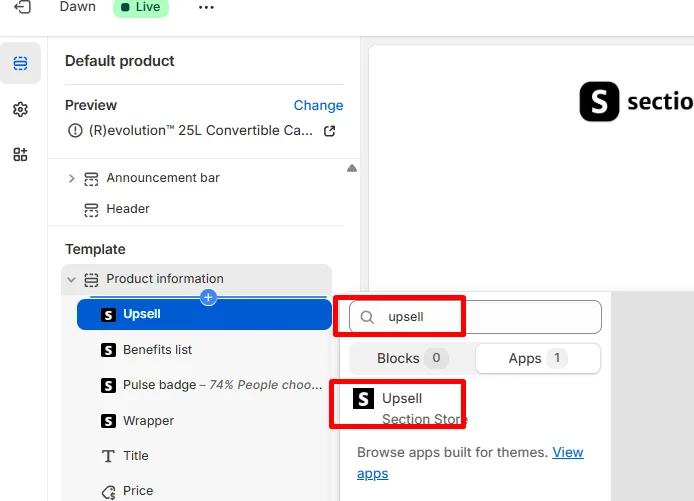
List other products with an Add button in your buy box. Pick the products, the look and what opens after a shopper clicks Add.
The Upsell block lists other products, each with an Add button. One click adds one unit of that product to the cart. The block gives no discount and has no promo text.
Can I add a countdown to the upsell? Not inside this block. Add the Countdown timer block next to it. That timer runs per shopper and restarts, so it isn't a real deadline.
This block is not the Upsell & cross-sell sections from our catalog. It's also not the Addons block, which waits for the Add to cart button.
Before you start
You need Section Store Plus or its free trial.
Add the block
- In Shopify admin, open Apps → Section Store → Conversion Blocks.
- On the Upsell card, click Edit In Theme.
- Pick your theme. Your live theme has a green dot.
- The theme editor opens in a new tab on your product template, with the block added.
- Drag the block where you want it.
- Next to Products, click Select and pick the products.
- Click Save.
The same products show on every product that uses the template. To show different products per product, connect Products to a metafield.
Settings
- Products: what to offer.
- Style: Stack or Carousel.
- Variant: None, Default, Simple or Image. The picker shows only on products with more than one variant. With None, we add the first variant in stock.
- Cart app: None, Upcart Cart Drawer, AMP Drawer or Kaching Cart.
- Auto detect theme: on by default. Turn it off to pick a Theme type.
- Open cart page: sends the shopper to the cart page after Add.
- Compare price: shows the compare-at price.
Button: Text (default "Add"), Sold-out text, and the Text and Background colors.
Text, Image, Appearance, Padding: Font size, Font weight, Title, Price, image Size, Background, Border, Width, Roundness, Vertical, Horizontal and Custom CSS.
What happens after Add
- Open cart page on: the shopper goes to the cart page.
- A Cart app picked: that app's drawer opens.
- A live Section Store Cart Drawer: it opens after the add, unless its Open drawer when products are added setting is off.
- Otherwise your theme's cart opens on these themes: Dawn, Refresh, Rise, Sense, Taste, Trade, Craft, Spotlight, Studio, Colorblock, Ride, Publisher, Crave, Origin, Digital, Horizon, Savor, Vessel, Ritual, Atelier, Heritage, Dwell, Pitch, Tinker, Fabric, Impulse, Prestige, Symmetry and Broadcast.
- On other themes, the product goes in the cart but nothing opens.
Good to know
- The price shown is the normal price. To discount it, see Give a discount on Upsell block and Addons block products.
- A sold-out product shows your Sold-out text on a disabled button.
- The block shows the products you pick, even the product the shopper is viewing.
- No products picked means no block.
Related
- Upsell block adds the product but no cart opens
- Upsell or Addons block not showing
- Give a discount on Upsell block and Addons block products
- Create dynamic upsell blocks for every product page
Also searched as: upsell, upsell block, add upsell, cross sell, frequently bought together, recommended products, related products, upsell carousel, upsell not adding to cart, upsell layout, choose upsell product, increase aov, average order value, upsell countdown, countdown on upsell, timer on upsell, countdown timer upsell, add a countdown to the upsell, upsell promo text, upsell discount, can i add a countdown to the upsell
Did this answer your question?