
Create a cart drawer from a screenshot
Upload a screenshot of a cart you like. AI matches its colors, blocks and layout in a new cart.
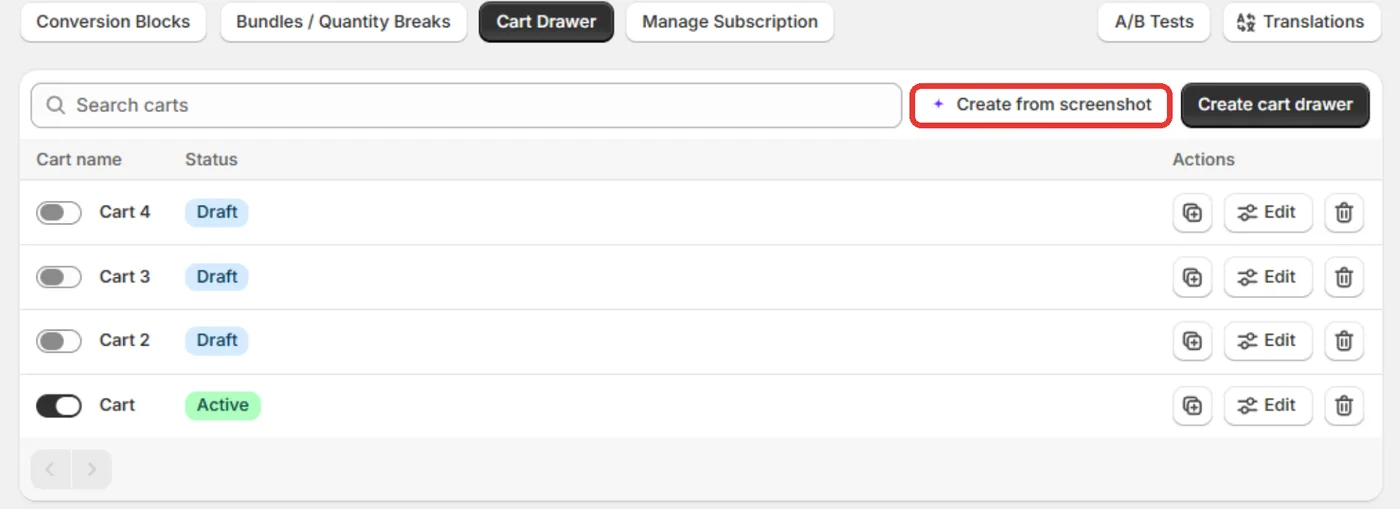
Click Create from screenshot on the Cart Drawer page and drop in an image of a cart you like. AI matches its colors, blocks and layout in a new cart. Review it and click Save.
Before you start
- Have a PNG, JPG or WebP screenshot, up to 8 MB. It can be your own store or another.
- You can build a cart on any plan. Showing it to shoppers needs Section Store Plus.
Create the cart
In Shopify admin, open Apps → Section Store → Cart Drawer.
Click Create from screenshot. It sits next to Create cart drawer.
In Create cart drawer from screenshot, drop or choose your image.
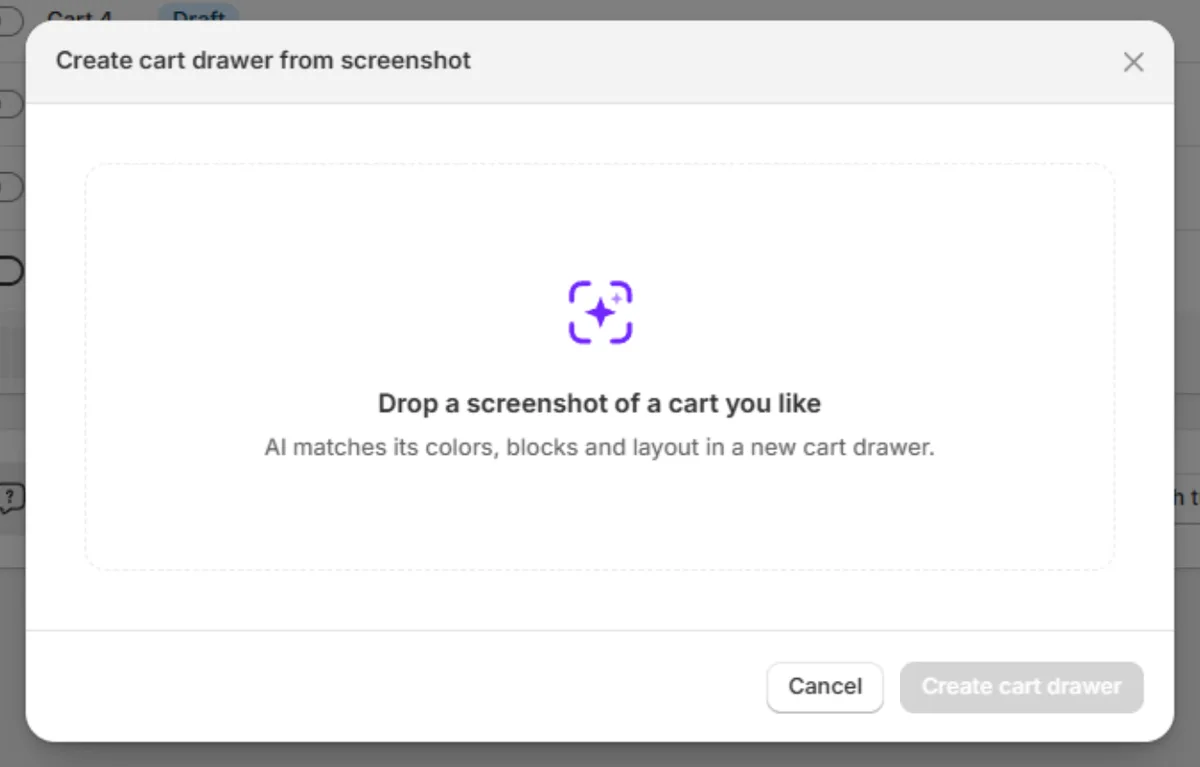
Click Create cart drawer.
The new cart opens on the AI assistant tab with "Match this screenshot style" and your image. Wait while the assistant works. It checks its result against your screenshot and fixes differences.
Review the cart in the preview. Ask for changes in the same tab if you want them.
Click Save.
Does it go live when I save?
- With Plus, on your first cart: yes. Your first cart starts switched on, so saving it makes it live once the app embed is on.
- On any later cart: no. It starts as Draft. Turn on its switch when you are ready.
- Without Plus: no. It saves as off.
Tips
- Clear screenshots of the full drawer work best. Cropped or blurry images are harder to match.
- Check reward tiers and upsell products before you turn the cart on.
- Only one cart can be Active at a time.
If it doesn't work
- "We can't read that file. Use a PNG, JPG or WebP screenshot.": use one of those file types.
- The page reloaded before the image arrived: attach the screenshot again on the AI assistant tab and send the prompt.
- "You've reached today's cart assistant limit. It resets tomorrow.": try again tomorrow, or build the cart on the Settings tab.
Related
- Create your first cart drawer
- Start a cart drawer from a ready-made template
- Change your cart with the AI assistant
- Turn on your cart drawer
Also searched as: cart drawer from screenshot, create cart drawer from screenshot, create from screenshot, screenshot to cart drawer, cart drawer from image, copy another store cart, cart drawer like another store, match screenshot, match this screenshot style, match layout, import cart design, upload screenshot, screenshot upload, png jpg webp, attach screenshot again, screenshot not attached, blurry screenshot, cropped screenshot
Did this answer your question?