
Adding Product Page Snippets
Here's a video for more clarity:
The tutorial shows a different section but the approach is the same for all our snippet sections.
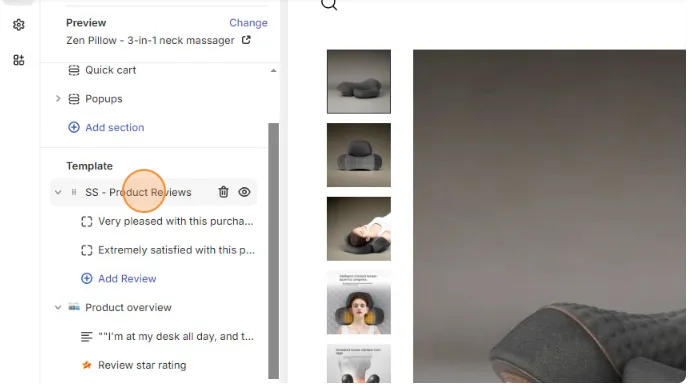
Navigate to your product template in the theme editor.
Click the: 'SS - Product Reviews' (or the snippet section you're trying adding)
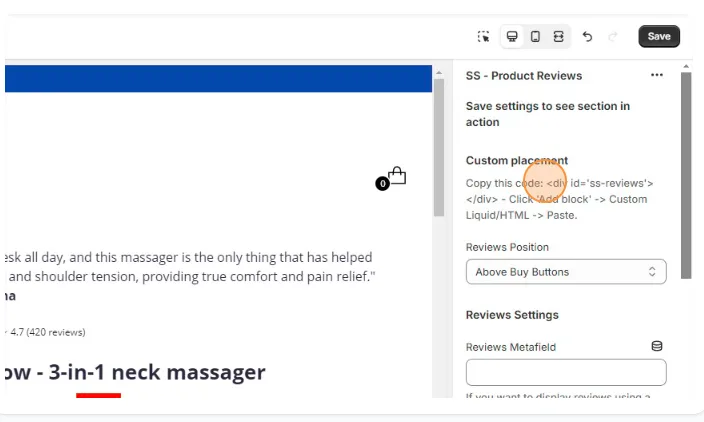
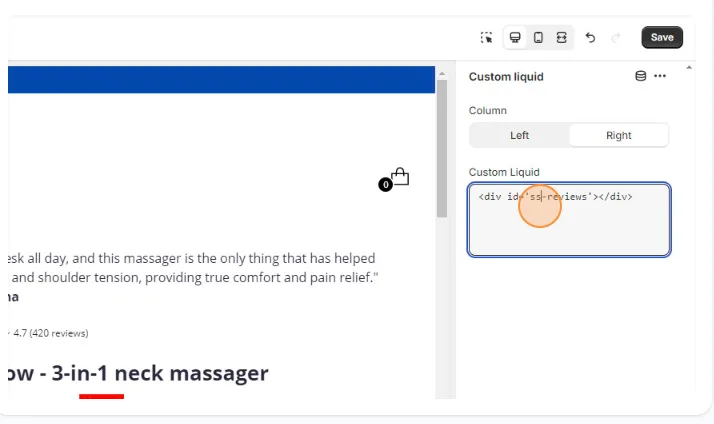
"Copy this code: - Click 'Add block' -> Custom Liquid/HTML -> Paste."
⚠️ This code differs on each different section snippet.
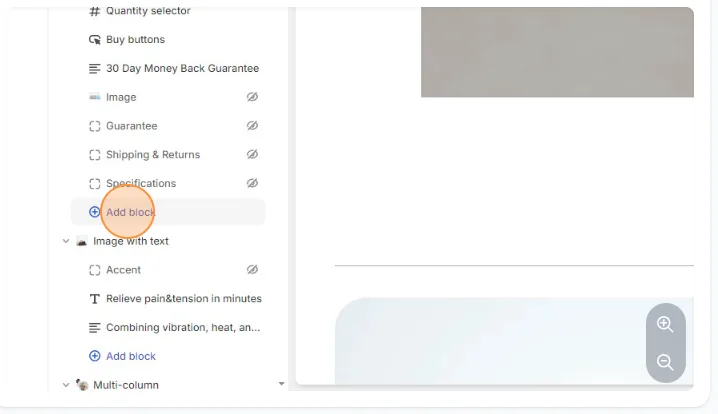
Go to Product Information/Overview/Detail Section and click ADD BLOCK
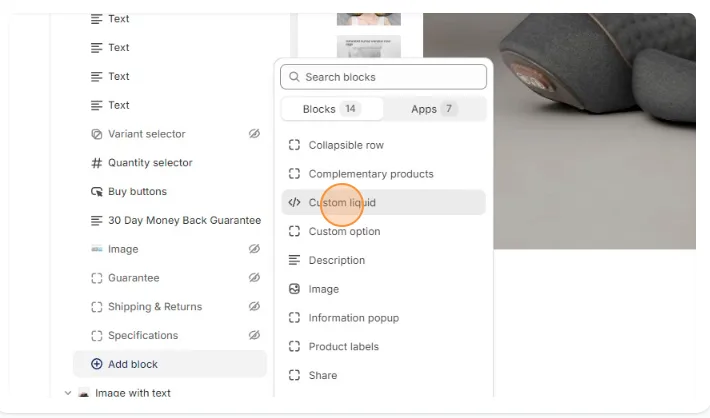
Select Custom Liquid / HTML (depends on theme what it's called)
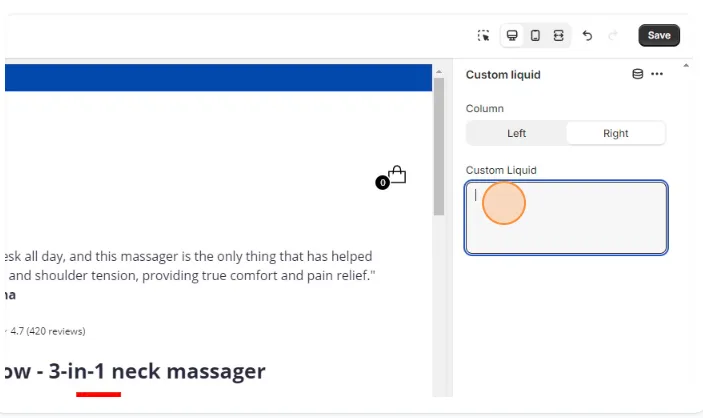
Click the "Custom Liquid" or "HTML" field.
Paste
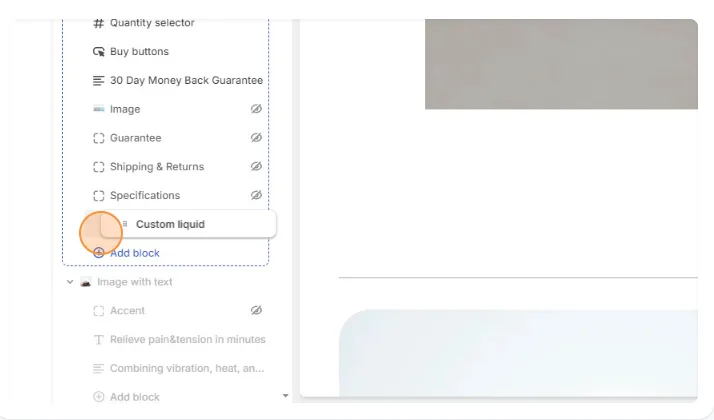
Drag this custom liquid wherever you want the 'Product Reviews' to appear. In this case, I will put it below your add to cart button
Click Save
Related articles
- Custom Placement - Finding a CSS selector
- Add-ons or Upsell Section Not Showing (or Not Adding to Cart)
Also searched as: add a snippet, add block, add on, add to cart, add-on, addon, app block, badge not showing, badges, below add to cart, block, cannot find section, custom code block, custom html block, custom liquid, custom liquid block, div id, drag block, embed code, how do i add snippet, inside product info, liquid html, location, move section, not appearing, paste code, place section, position section, product details section, product information section, product page snippet, product reviews section, product template, reviews under add to cart, section not showing product page, snippet not showing, snippet section, ss-reviews, theme editor add block, trust badges placement, upsell, where to put section, why is my section missing
Did this answer your question?