
Translate conversion blocks and purchased sections
Open Translate & Adapt from Section Store to translate conversion block and purchased section text, and find a block that's missing.
Conversion block and purchased section text is saved into your theme, not into our app. That means Shopify's own tool translates it, and Section Store points you at the right place.
If you are trying to translate bundle or cart drawer text instead, you do that inside our app. See Translate bundles and cart drawer text.
You need Translate & Adapt first
Translate & Adapt is a free app made by Shopify. If you have already added a second language to your store, Shopify may have installed it for you. If not, there is an Install Translate & Adapt button on the Translations page.

Getting there
- In Shopify admin, open Apps → Section Store → Conversion Blocks.
- Click Translations in the button row.
- Set the first dropdown to Conversion blocks or Purchased sections.
- Pick the theme you want in the second dropdown. If you run more than one theme, this matters, see below.
- Click Open in Translate & Adapt.
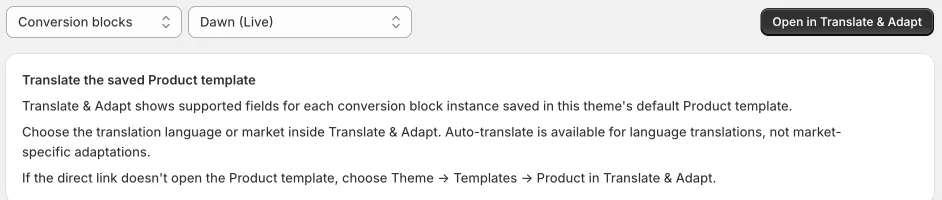
That button drops you in the right spot. If it opens somewhere else, navigate manually once you are inside Translate & Adapt: Theme, then Templates, then Product.
Without Plus, the Translations page shows No content available to translate. Open Translate & Adapt yourself in Shopify admin, then choose Theme and Templates.
Why your block might not be in the list
Translate & Adapt doesn't list blocks by name the way our app does. It shows the fields for each block saved in that theme's default Product template. A block shows only if it's saved there.
If a block is missing, check in this order:
- Is it saved? Adding a block in the theme editor isn't enough. Click Save, then go back to Translate & Adapt.
- Right theme? Translate & Adapt reads the saved theme, not the one open in your editor. Check the theme in the second dropdown.
- Right template? A block on another product template isn't in the default Product list. Each saved block has its own translation, so translate it on that template too. See Show different Conversion Blocks on different products.
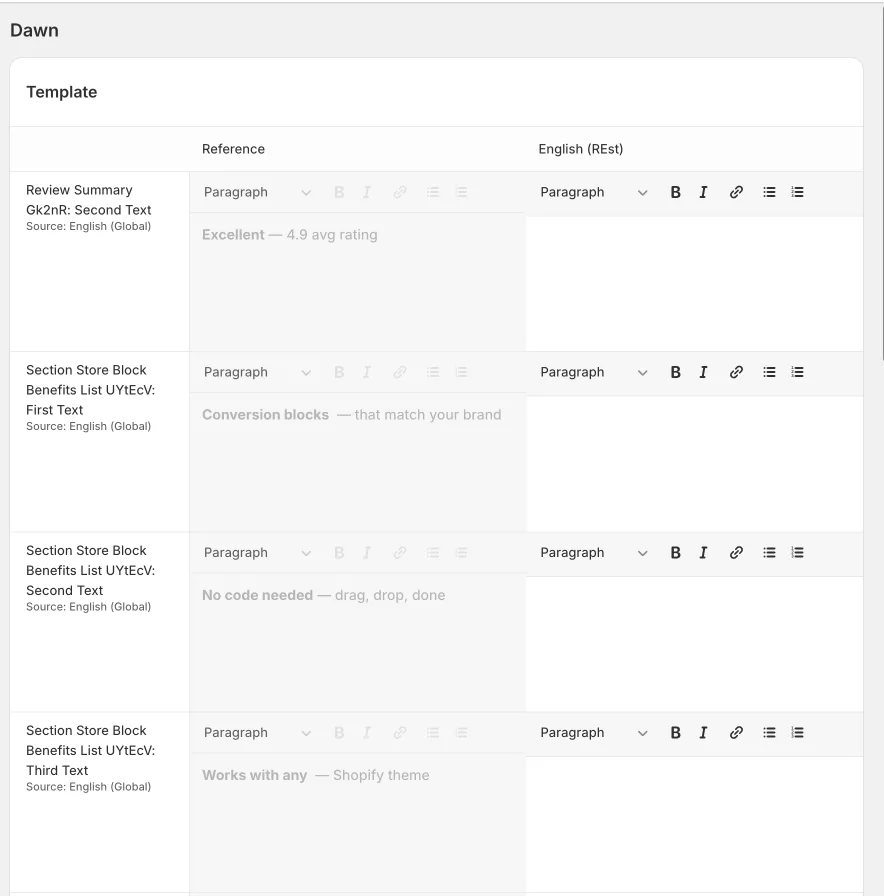
Block words that translate by themselves
Some block words come translated. They follow the shopper's storefront language, so they aren't in Translate & Adapt: the Pulse badge stock messages, Sold out and Save X% on Addons, and the Video carousel button labels.
Copy, Copied! and Change work the same way only when you clear the block's own setting. See Conversion Block text still in English.
Languages and markets
Pick the language or market inside Translate & Adapt, not in Section Store.
Auto-translate works for languages. It does not work for market-specific versions, so if you are adapting text for one market rather than one language, you fill those in by hand.
Do not translate these
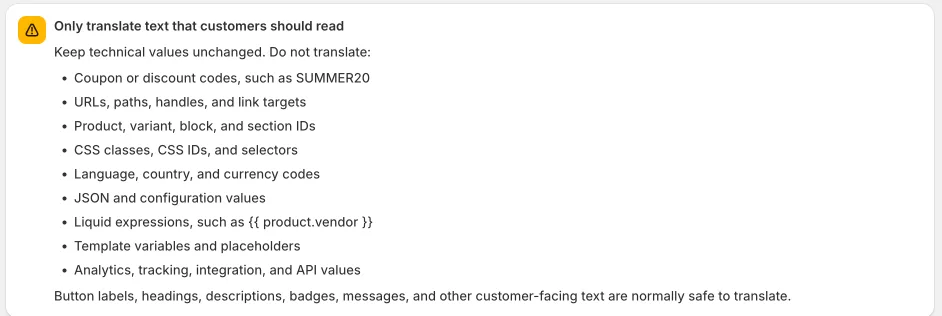
Translate what a customer reads. Button labels, headings, descriptions, badges and messages are all safe.
Leave these exactly as they are. They are technical values, and translating them breaks the block:
- Discount codes, such as SUMMER20
- URLs, paths, handles and link targets
- Product, variant, block and section IDs
- CSS classes, CSS IDs and selectors
- Language, country and currency codes
- JSON and configuration values
- Liquid expressions, such as
{{ product.vendor }} - Template variables and placeholders
- Analytics, tracking, integration and API values
Still stuck
Open the chat bubble in the Section Store app or email [email protected]. Send your store URL, the theme you are working in, and the block or section you are trying to translate.
Related
- Translate bundles and cart drawer text
- Add Purchased Section To Theme
- Simple way to change product template
- Assign a product template to multiple products in Shopify
- How to Copy Sections to Other Pages or Themes
- Translate Conversion Block text
- What are Conversion Blocks?
Related articles
Also searched as: translate, translation, translations, translating, language, languages, localize, localise, localization, multilingual, second language, change language, other language, not in english, still english, wrong language, translate and adapt, translate & adapt, translate adapt, conversion block translation, translate conversion blocks, block text language, purchased sections translation, translate my section, section text language, section in english, cannot find my block, block not listed, block missing in translate, where is my section, product template, default product template, theme templates, shopify markets, market translation, auto-translate, french, german, spanish, dutch, italian, portuguese, arabic, upsell block text, shipping info text, social proof text, badges text, benefit icons text, section store plus, plus translations, spanich, spanisch, leguege, langauge, languge, idioma, necesito cambiar el idioma, cambiar idioma, francais, français, langue, sprache, taal, lingua, dil, not in my language, change the language, traducir, traduire, übersetzen, vertalen, tradurre
Did this answer your question?