
Add Announcement Bar To Top / Header
Navigate to your admin
Click ''+Add Section' button inside the header group
Select the section you want to add
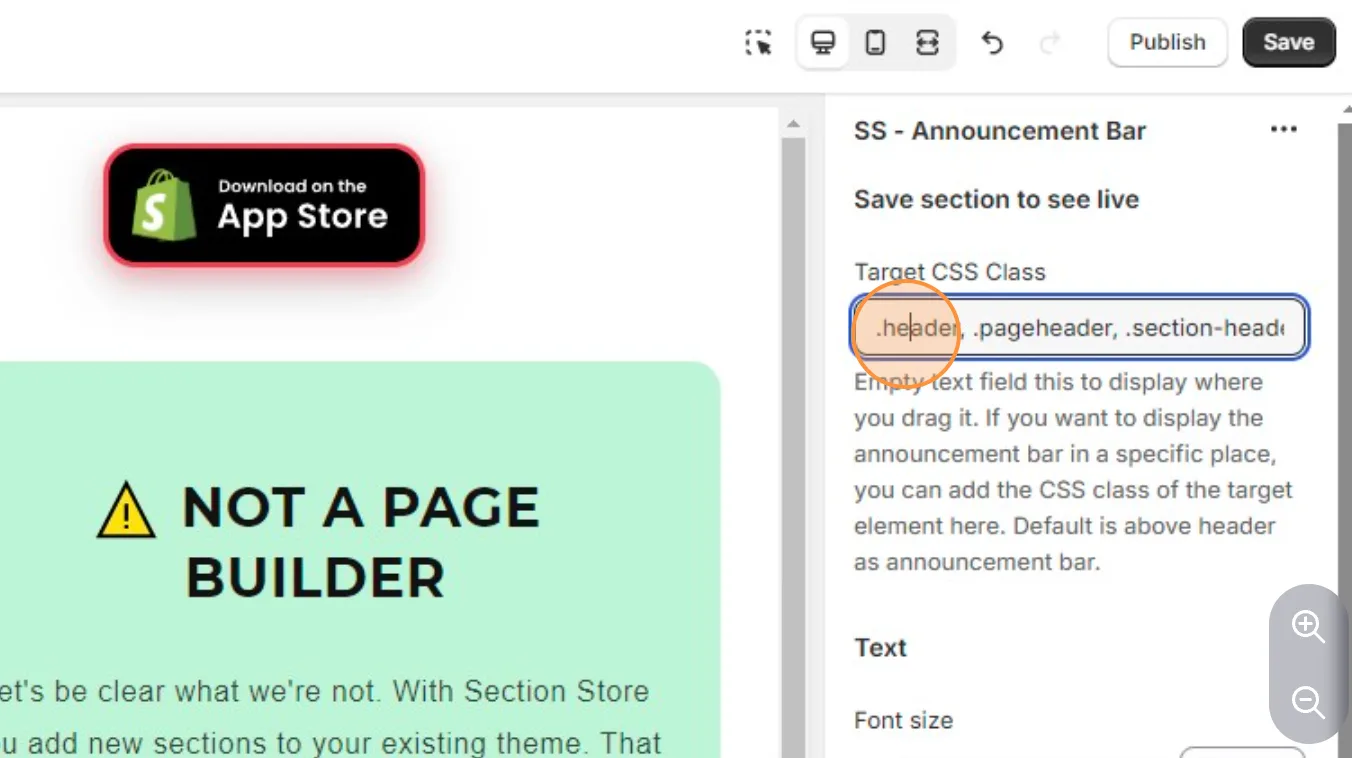
Empty all the text inside the 'Target CSS class' setting.
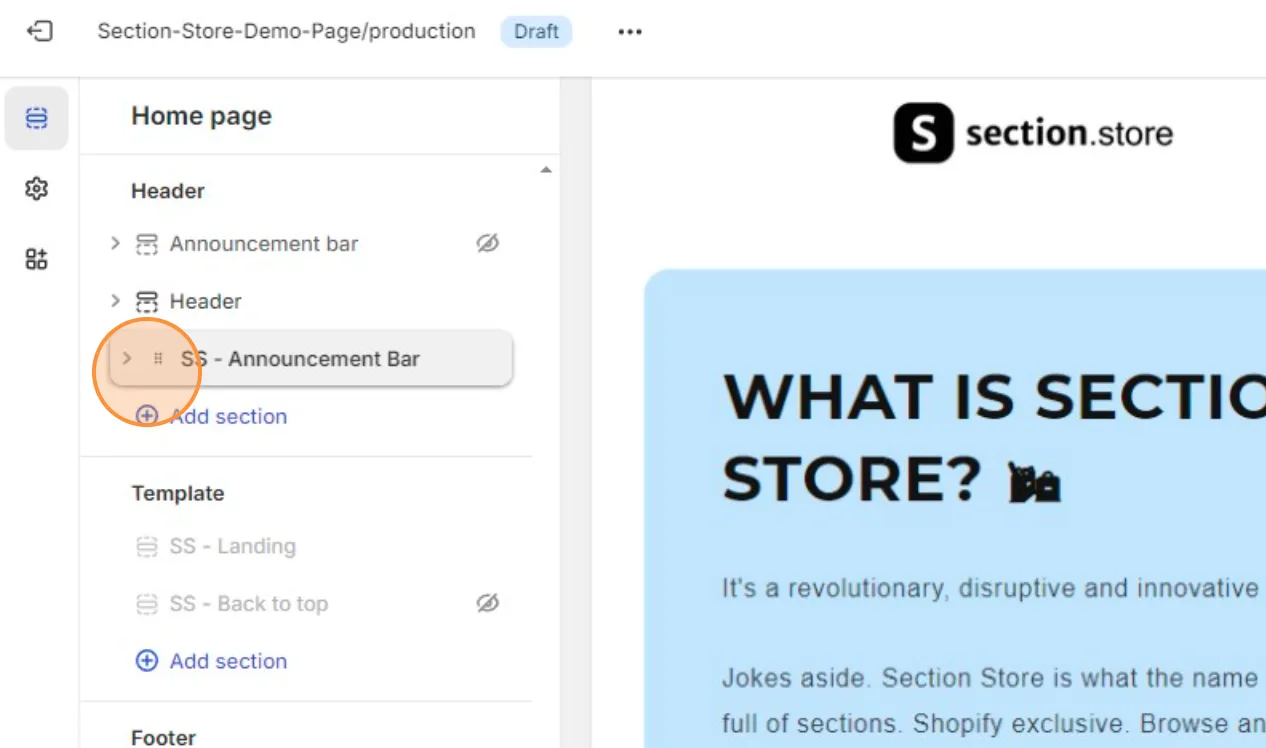
- Drag it to the top of the header group and click save.
Related articles
Also searched as: above header, add announcement bar, add bar to header group, add section to header, announcement bar, announcement bar below header, announcement bar covering, announcement bar not at top, announcement bar position, announcement bar setup, announcement bar under header, announcement bar wrong place, banner at top, bar behind header, bar on all pages, drag to top, empty target class, free shipping bar, header area, header group, header group add section, header section, how to add announcement bar, move to top, promo bar, put bar above header, sitewide bar, sticky bar, target css class, top bar, top of every page, top of page, top of store
Did this answer your question?